Discuss! Plugin Ant Apple Quick Login
Little Ant Apple Quick Login plugin supports Discuz! X3.4, X3.5, X5.0, and X5.1 provide Apple account login, forum account binding, and automatic first-time login registration. Access requires a valid Apple Developer Program membership and associated apps already listed in the App Store and signed in with Apple.
Little Ant Apple Quickly Login to Discuz! Forum access "Sign in with Apple". Users can log in to their already linked forum account with their Apple account, or they can link their Apple account after logging in to the forum. Website owners can enable automatic first-time login registration, allowing users who do not yet have a forum account to create and log in through Apple authorization.
The plug-in backend provides Apple interface configuration, callback URLs, agent connectivity tests, binding records, and operation logs. Supports Simplified Chinese, Traditional Chinese, English, and Korean.
Precautions for use
1. Please confirm access eligibility before purchase or installation. Site accessors must have a valid Apple Developer Program membership and have a forum-related App listed in the App Store that uses "Sign in with Apple". Developer programs are typically charged annually, and eligible organizations can apply for fee waivers. Having only a website, or having only one new App ID created in the Apple backend, does not meet the access requirements for Apple web login.
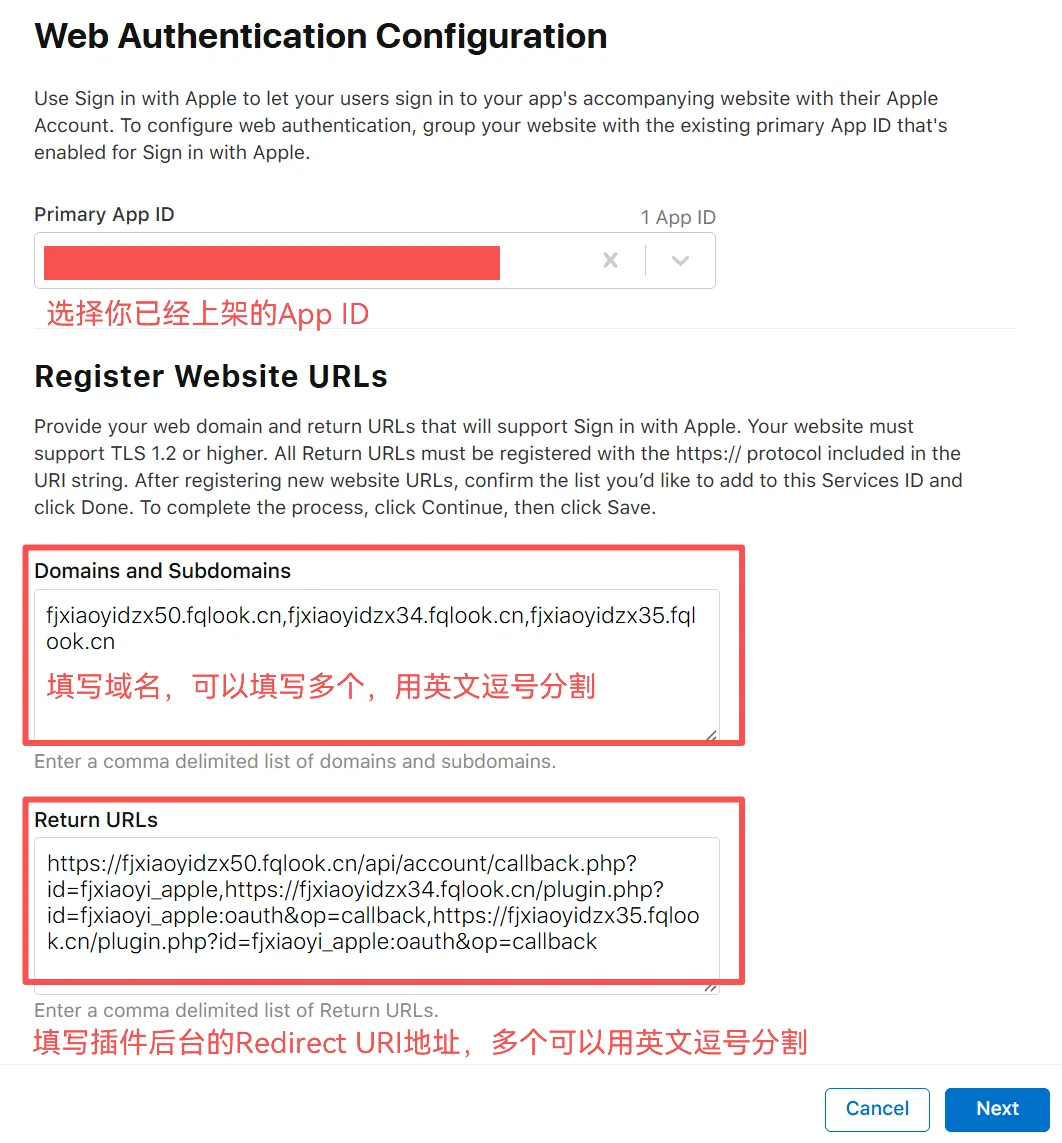
2. The Apple backend and the plugin backend use different logos. The same primary App ID should be selected for the Apple web page configuration and login key configuration. Fill in the Services ID (Identifier) in the plugin backend with the webpage service Identifier, then fill in the valid Team ID, Key ID, and the corresponding .p8 private Key. Please keep your private key safe.
3. Register the callback according to the address displayed in the plugin backend. For Apple's "Domains and Subdomains," fill in the hostname, such as forum.example.com. Return URL Fills in the full HTTPS callback address displayed by the plugin. The callback ports for X3 and X5 are different; please copy them according to the actual installation version.
4. Automatic registration must be open to general forum registration. When regular registration is turned off or invitation-only registration is enabled, the plugin does not automatically create an account through Apple. After turning off the plugin's automatic registration, users who already have a forum account can first log in and link their Apple account, and then use Apple to quickly log in.
5. Users who already have a forum account should bind it first. The plug-in recognizes the binding relationship based on the user ID returned by Apple Authorization. Existing users can log in to their original account before binding it, and then continue to use their original account's posting history, points, and permissions.
Configuration Guide:
Apple Web Sign-In Configuration Guide:
https://developer.apple.com/cn/help/account/capabilities/configure-sign-in-with-apple-for-the-web/
The official configuration guide written by Xiaoyi:
https://www.fjxiaoyi.com/product-30.html?tab=help
First edition, no logs yet.
Note: To use this plugin, you must have an Apple developer account with a regular renewal, and you must have an App already available.
Log in to your Apple developer account:https://developer.apple.com/account/resources
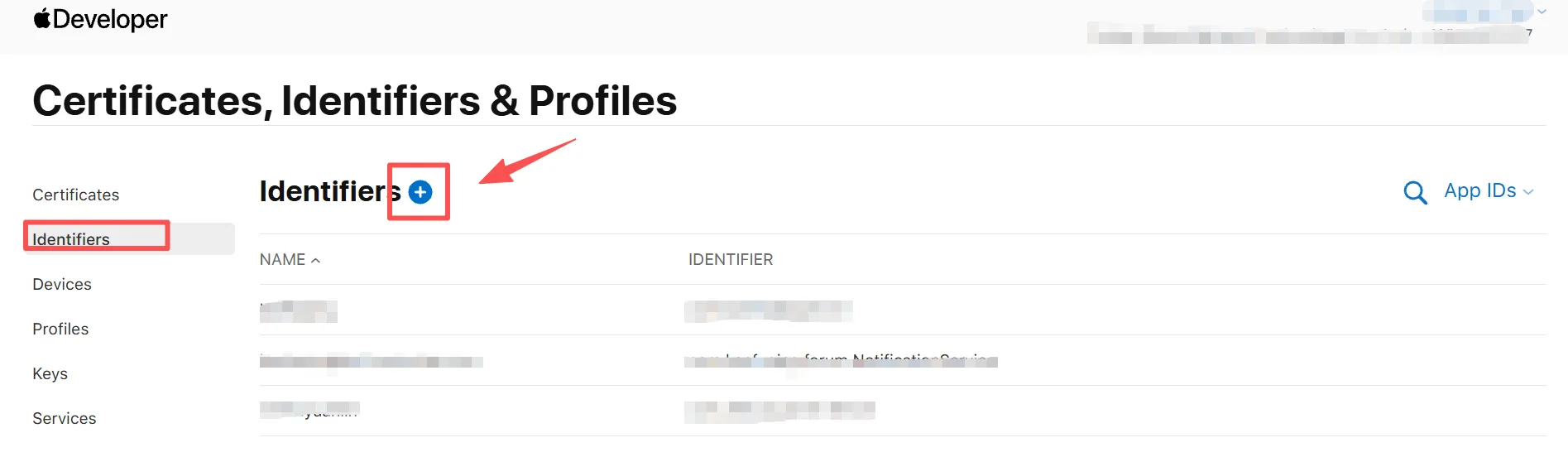
Click the plus button next to identifiers (as shown below)
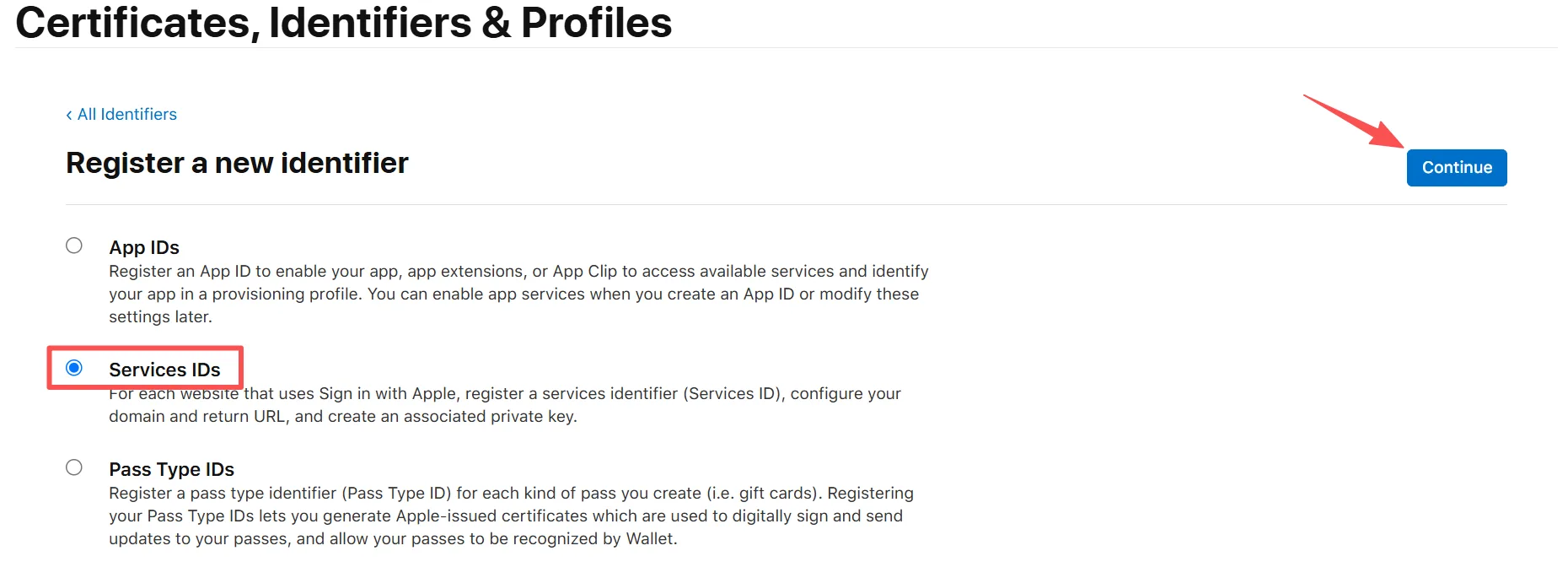
Select services IDs and click continue (as shown below).
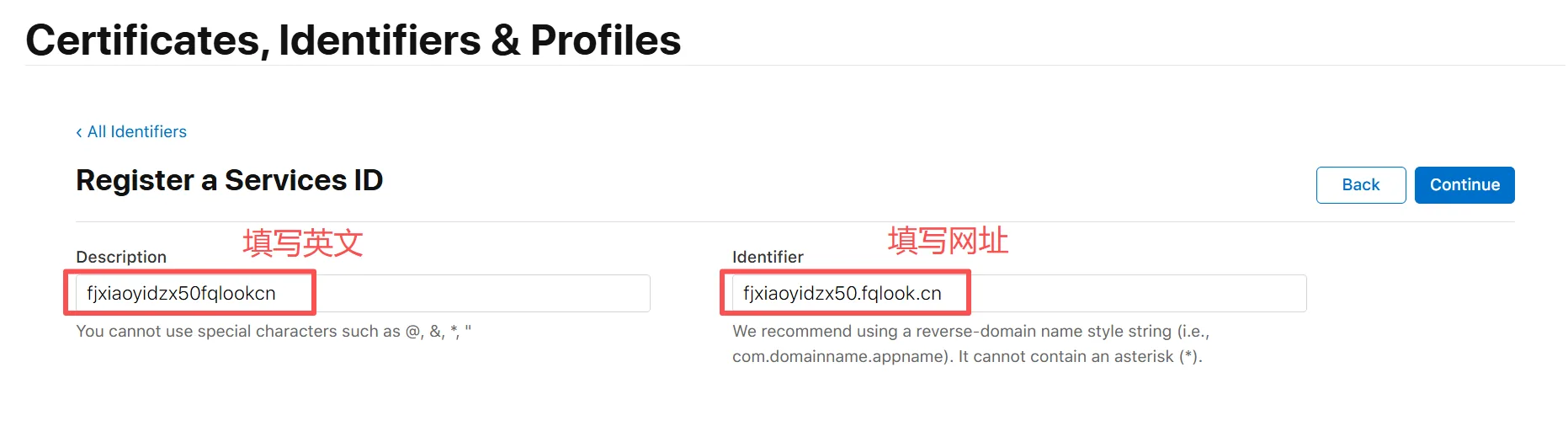
Fill in the description (in English), fill in the identifier (e.g., fill in the URL), and then click continue (as shown in the image below).
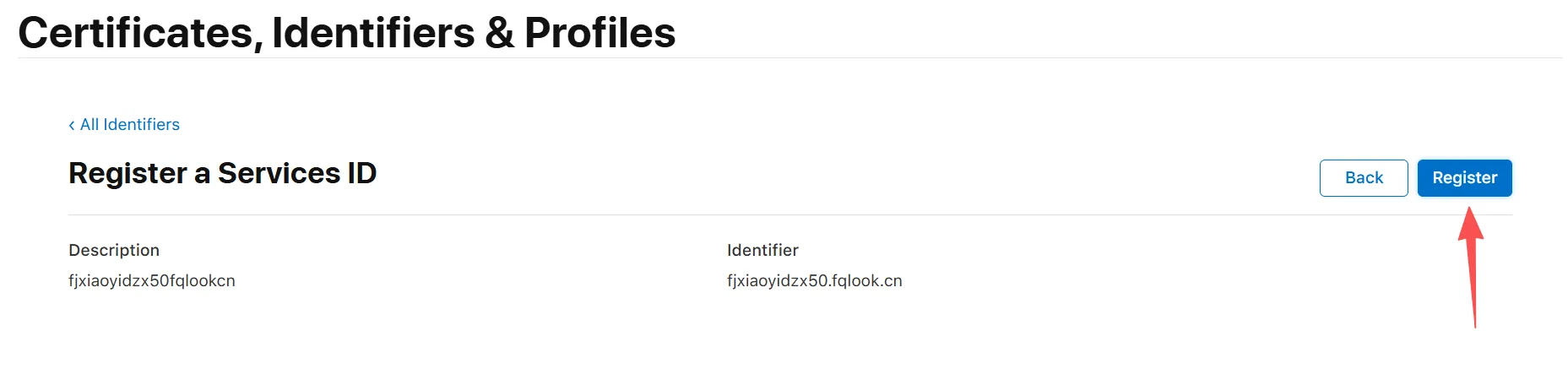
Click the register button on the page (as shown in the image below).
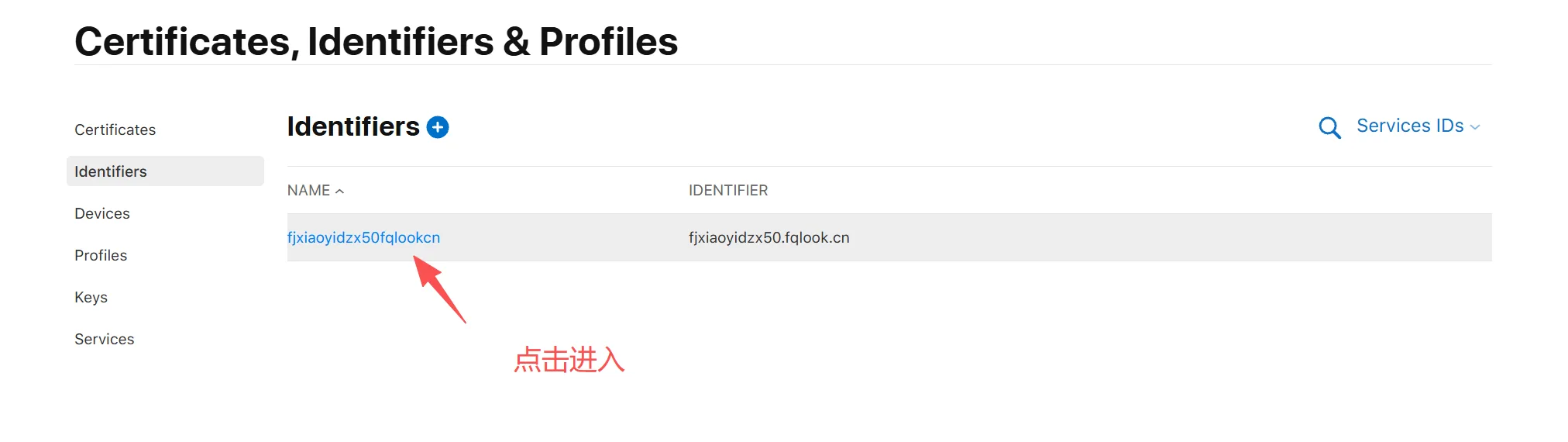
After creating identiflers, click NAME to enter the configuration (as shown in the image below).
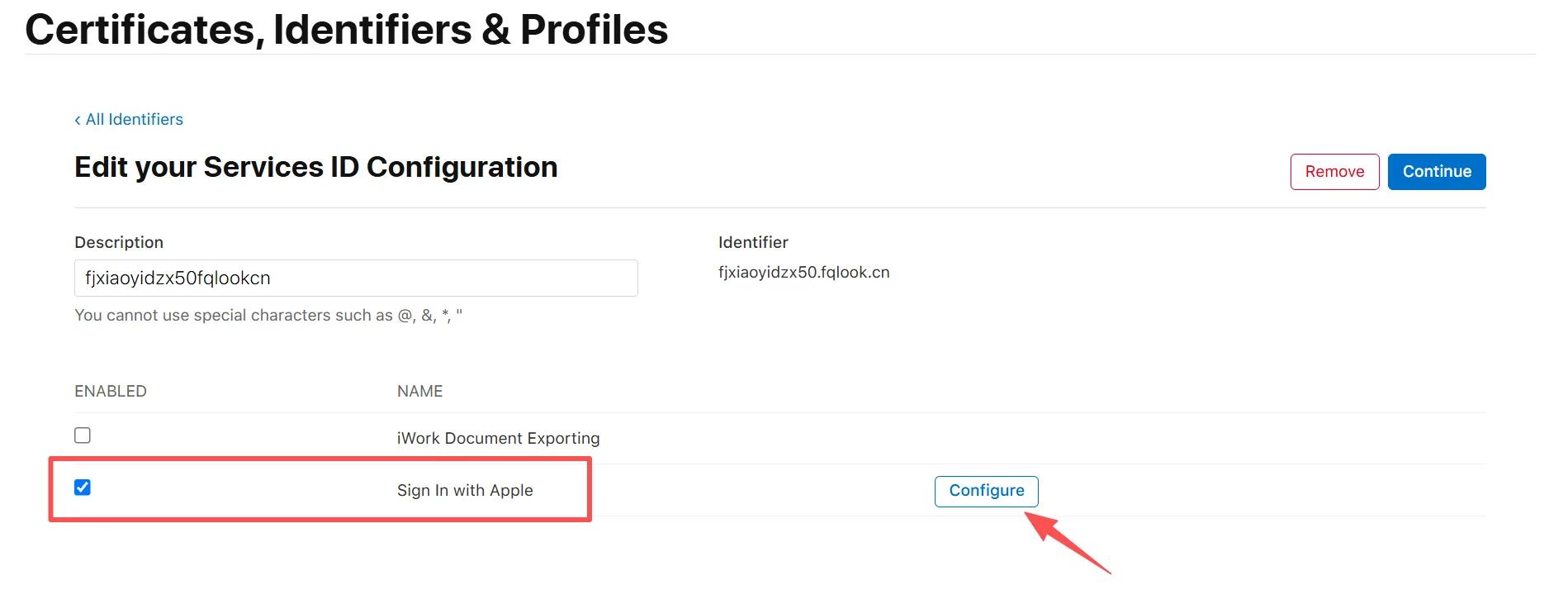
Check the sign in with apple box and click the configure button on the right (as shown in the image below).
Fill in the form as shown in the image below, and then click next.
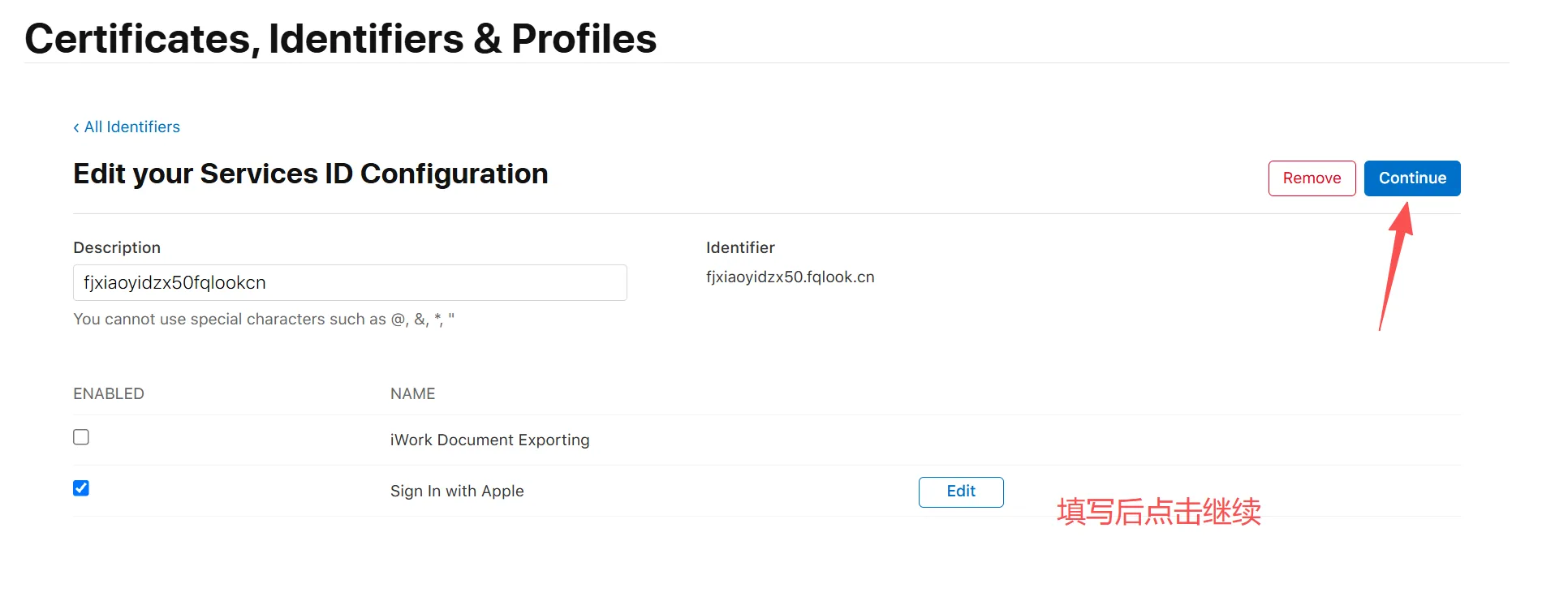
Click the continue button (as shown below).
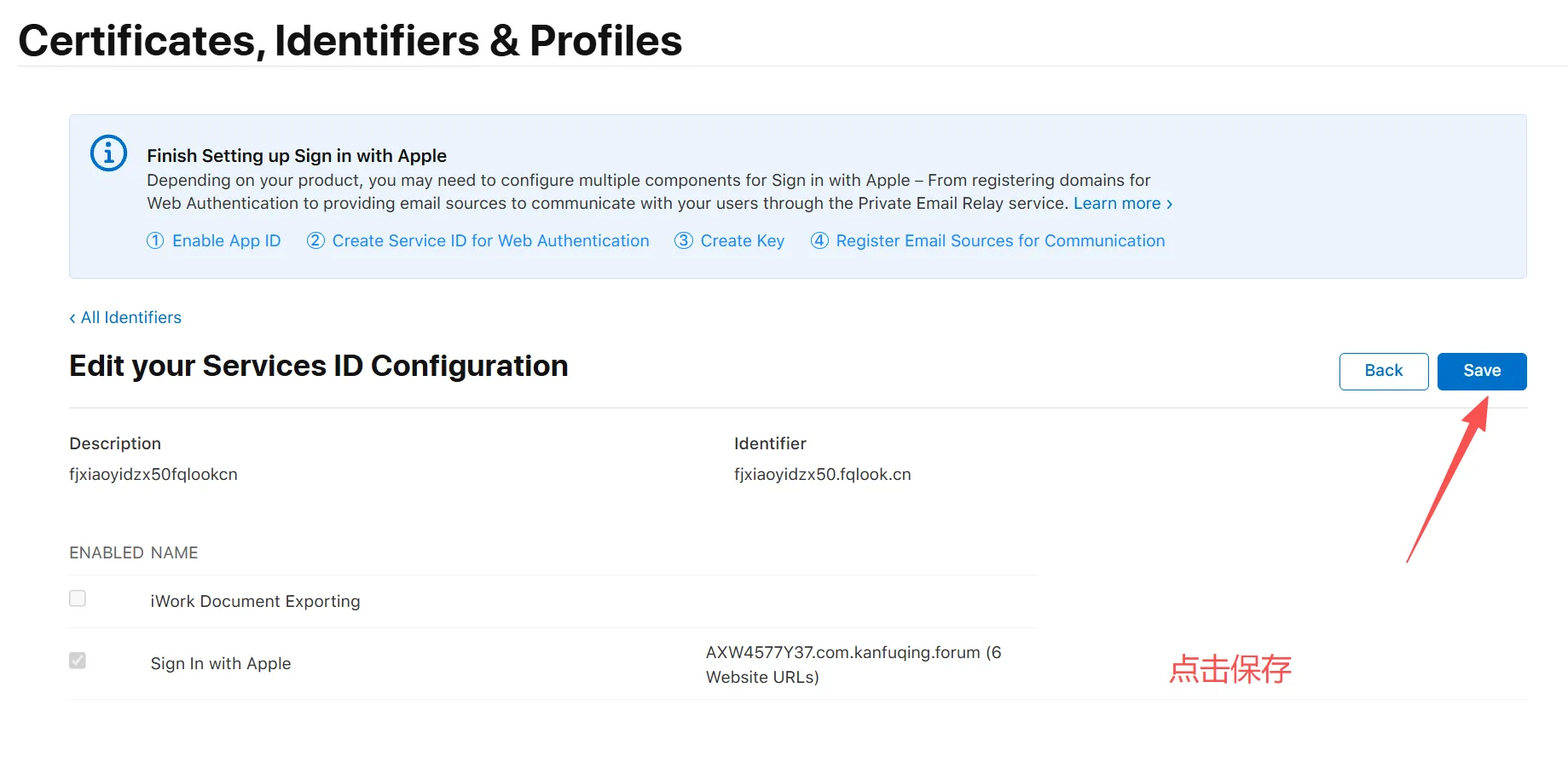
Click the save button (as shown below).
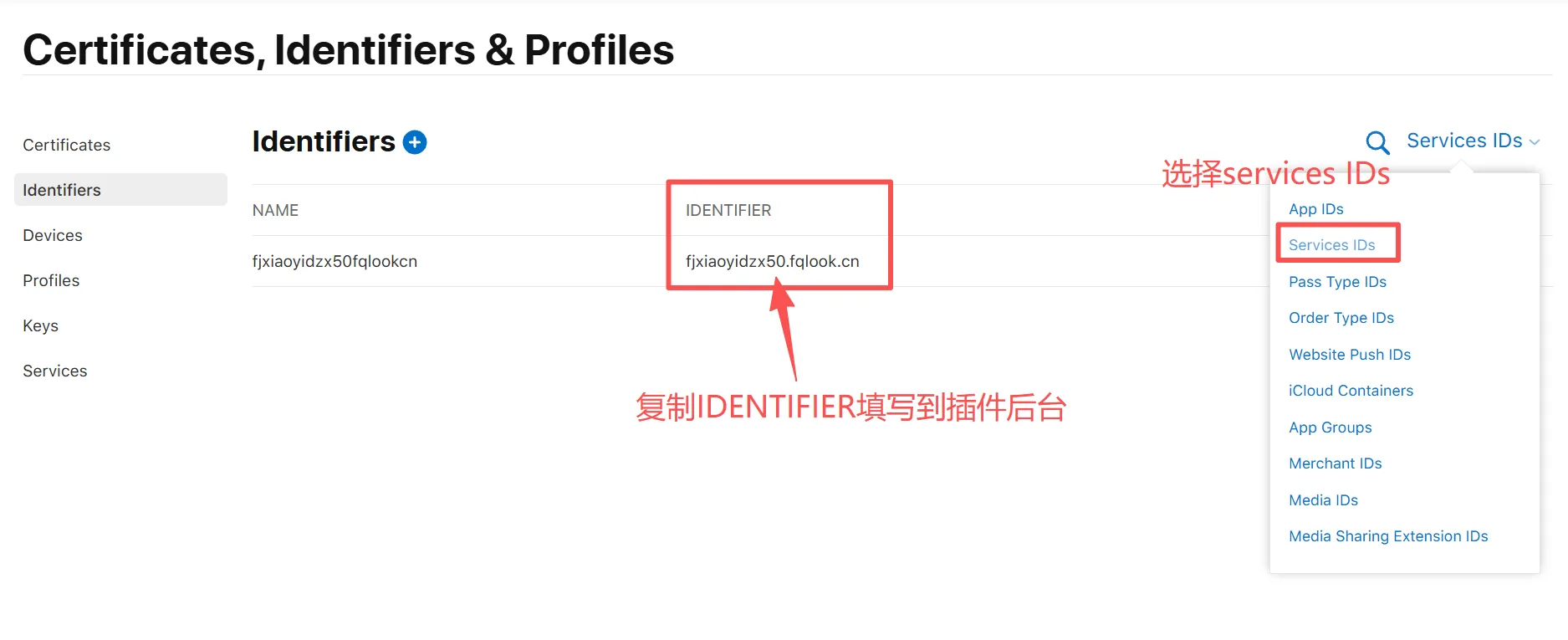
Copy the Identifier to the plugin background and fill in the Services ID (Identifier).
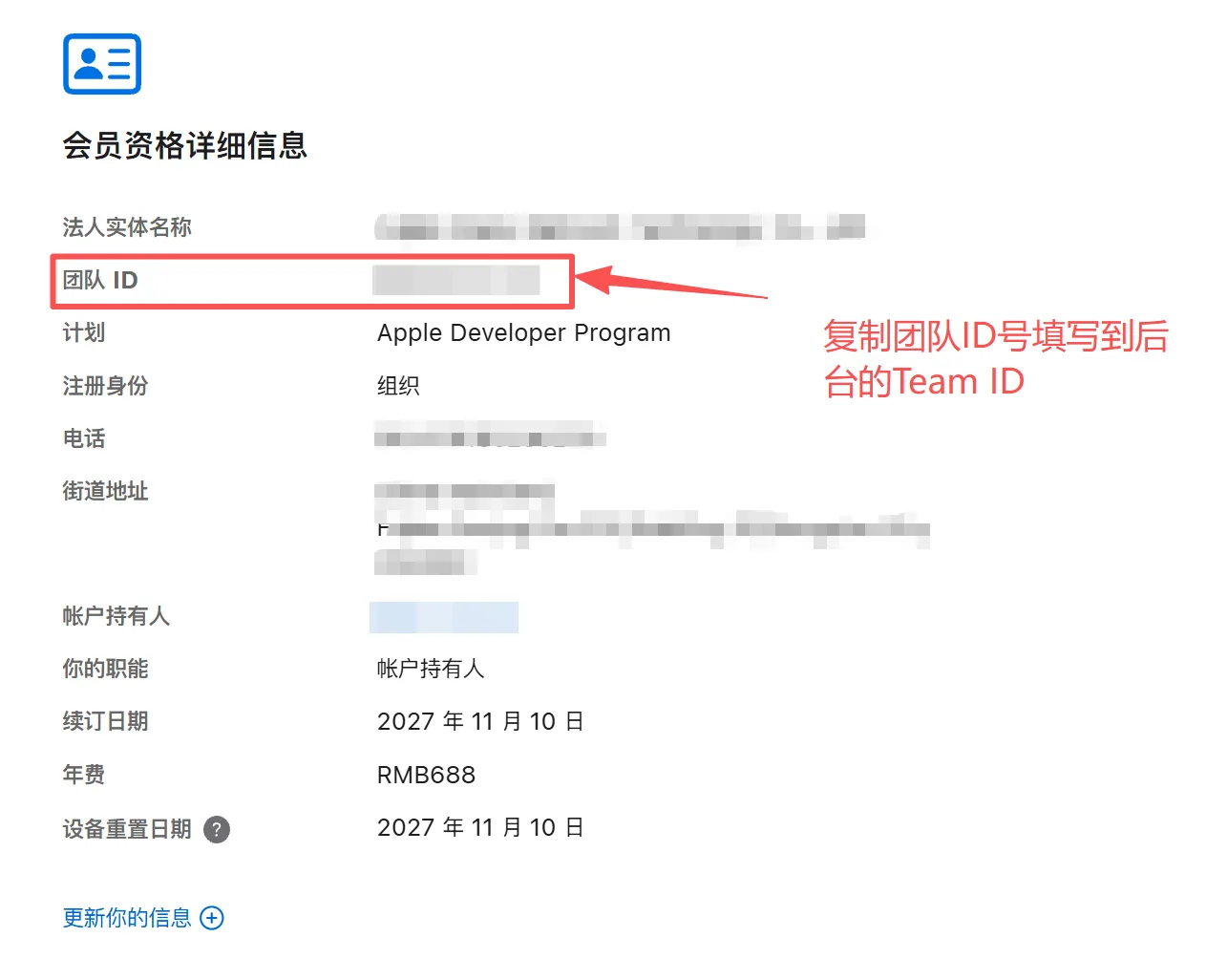
Open the membership page (you can select the Chinese page, and the same applies to English):https://developer.apple.com/account#MembershipDetailsCard
Copy the Team ID on the page to the Team ID field in the plugin background.
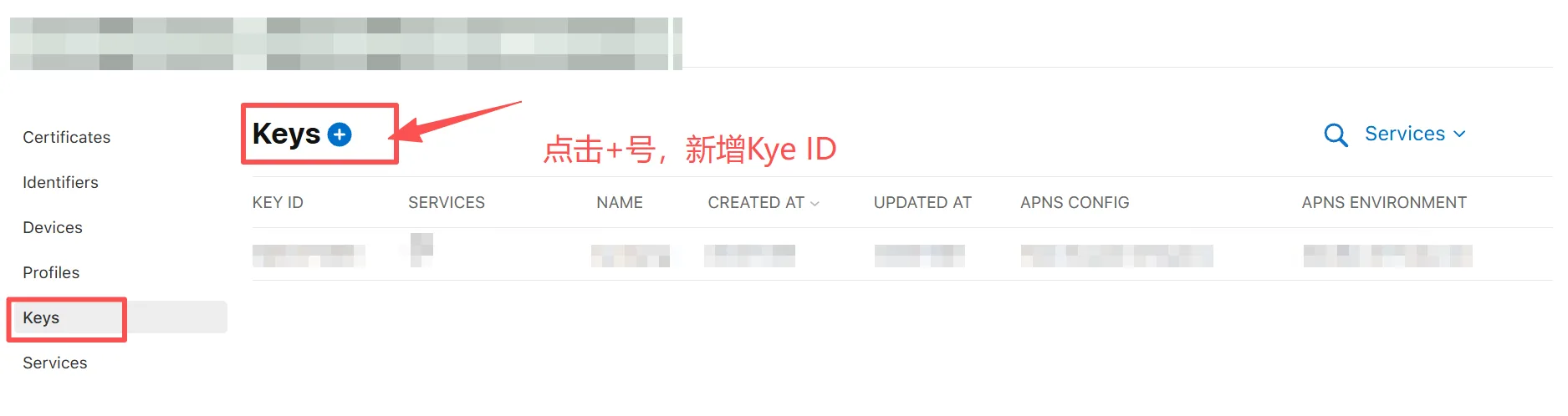
In the developer URL of the first login (https://developer.apple.com/account/resourcesClick keys, then click the plus button to the right of keys (as shown in the image below).
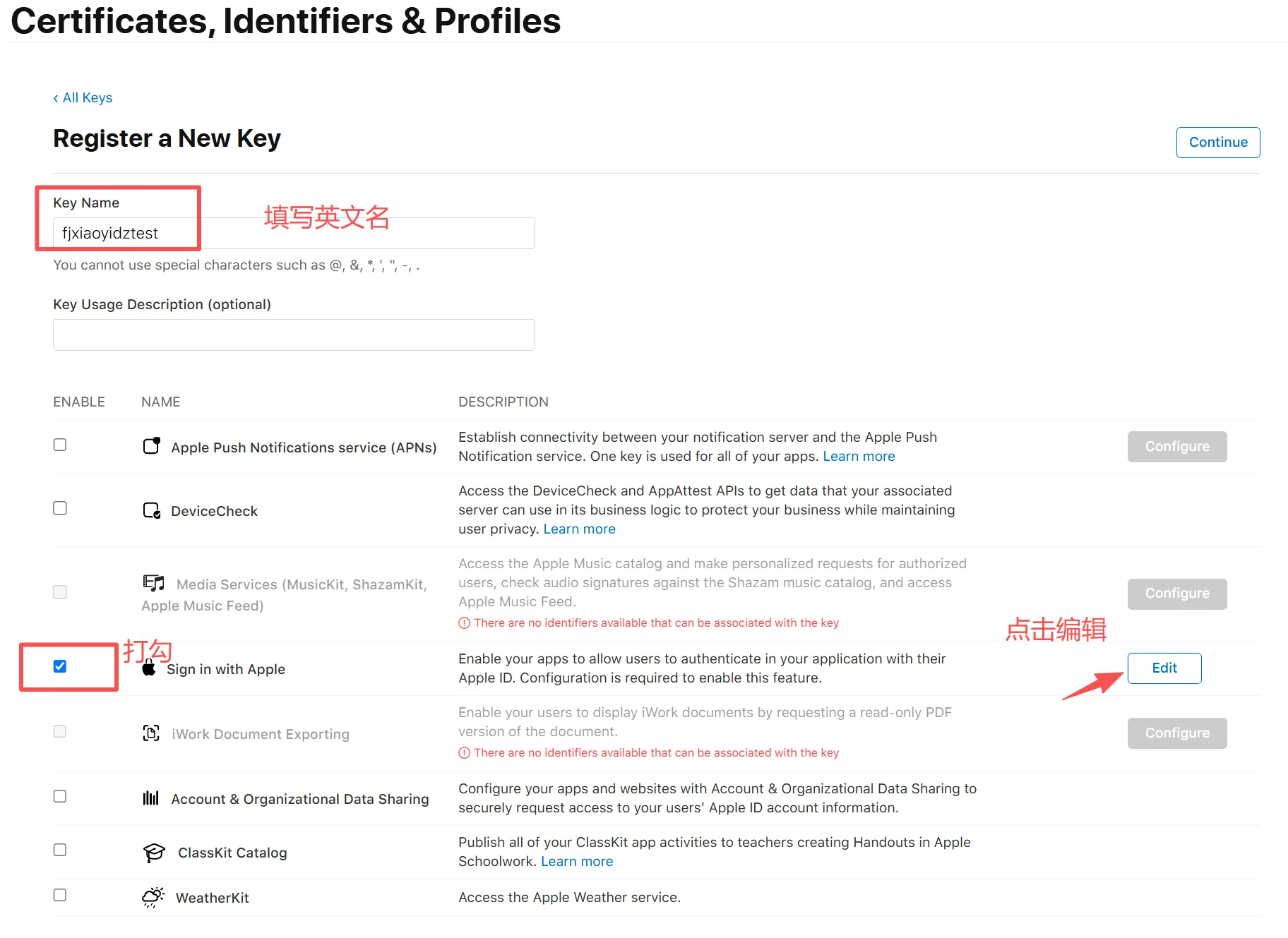
key Name: Enter the English Name, check the "sign in with apple" box, and then click the edit button on the right (as shown in the image below).
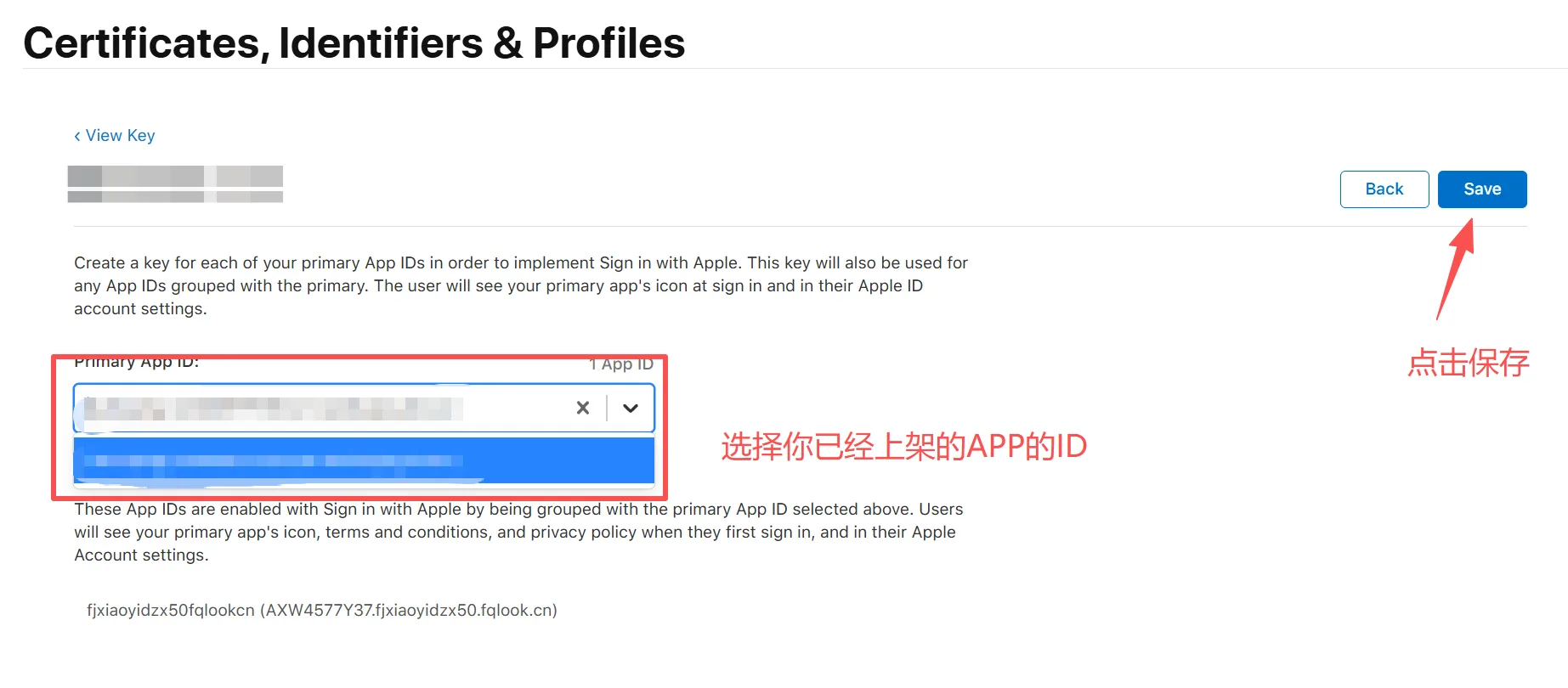
In the primary app id drop-down menu, select the app id you have already listed, and then click the save button (as shown in the image below).
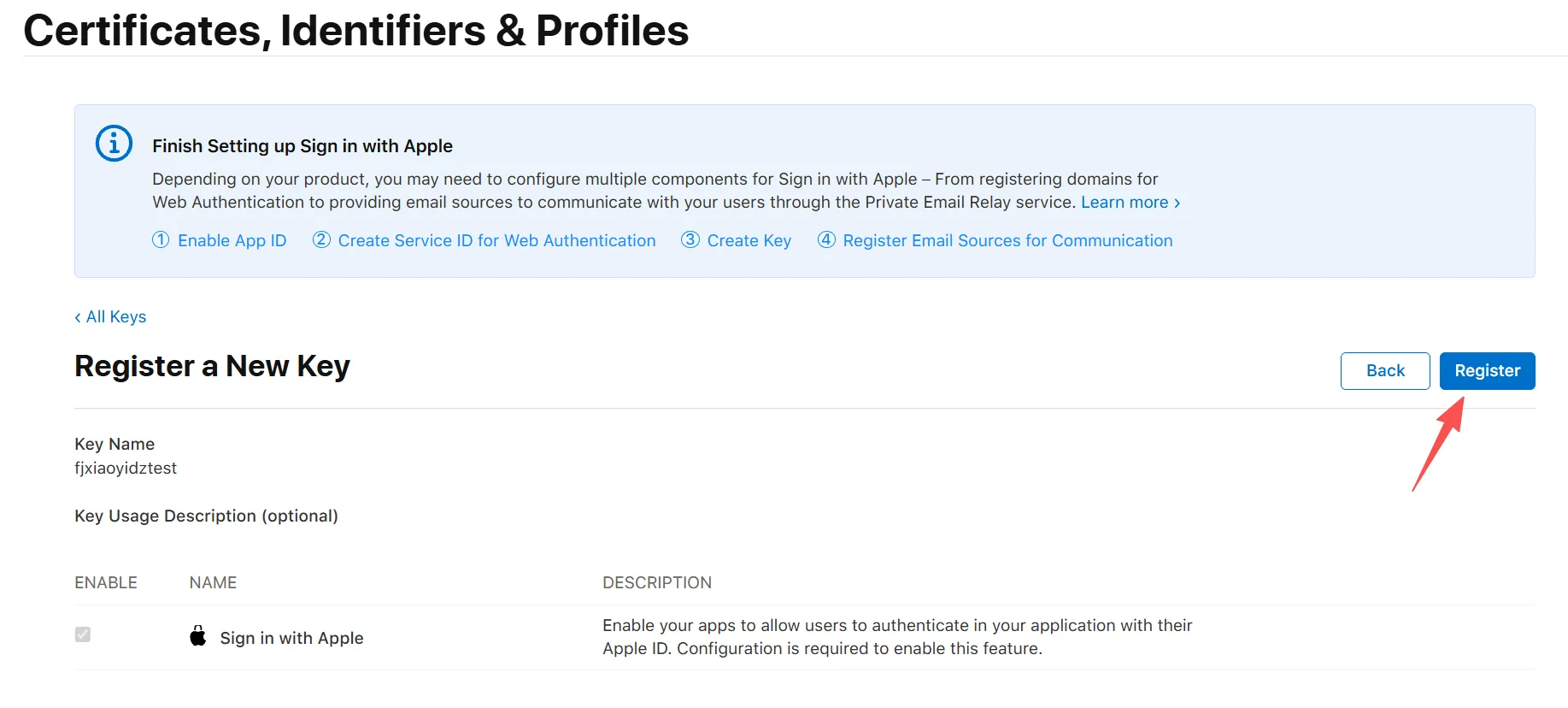
Click the register button (as shown in the image below).
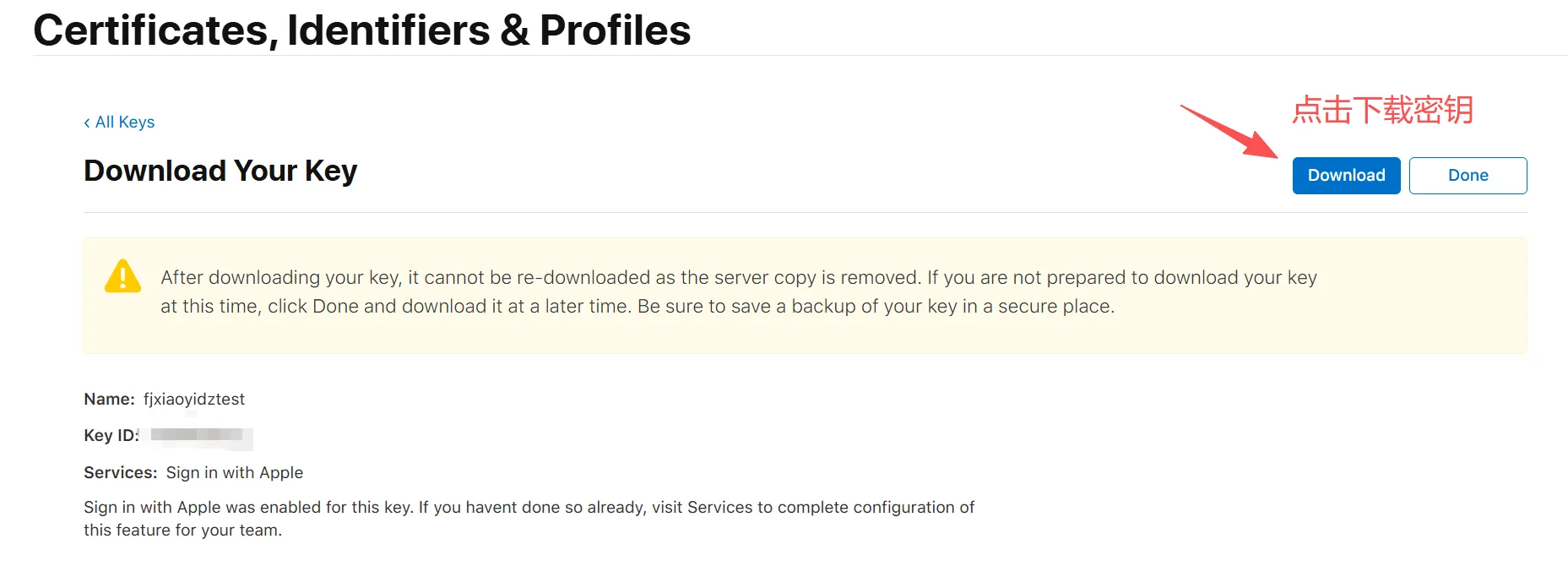
Click download to download the key. Note that this can only be downloaded once, so be sure to save it carefully (as shown in the image below). Open the downloaded .p8 file with Notepad, select "Copy" and paste it into the .p8 private key location in the plugin backend.