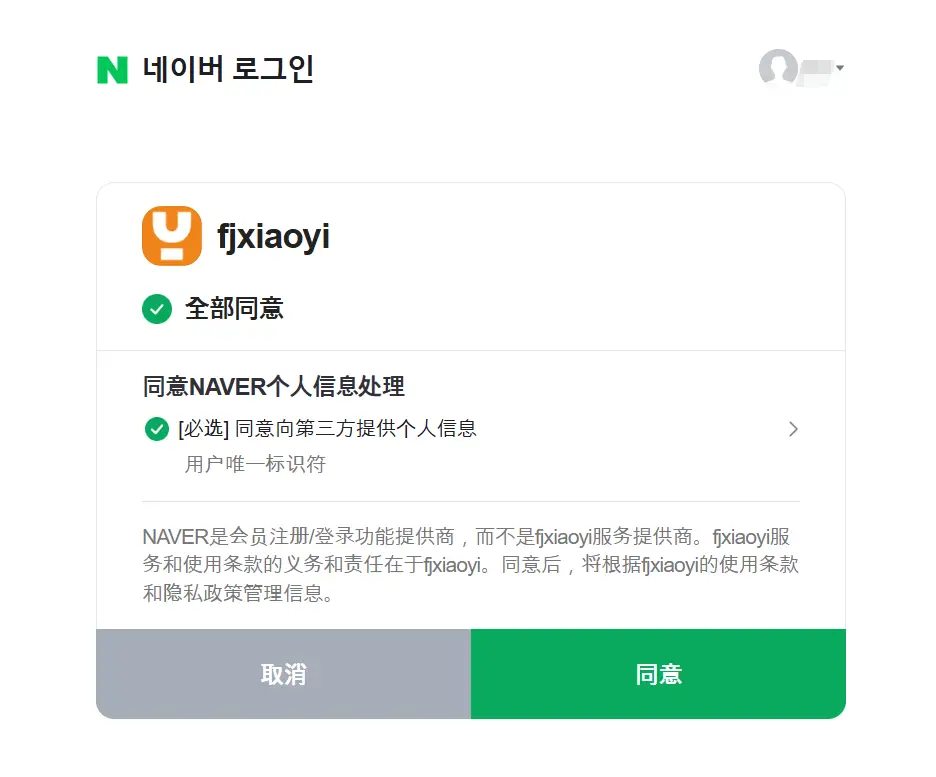
Discuss! Plugin Xiaoyi NAVER Quick Login
Xiaoyi NAVER Quick Login is a tool for Discuz! Third-party login plugins for forums
Little Ant NAVER Quickly Login to Discuz! The forum provides NAVER account authorization login. Members can enter the forum after completing their authorization. Members with existing forum accounts can link or unlink NAVER in their personal center and continue to use their original accounts, points, and posting history.
Site owners can enable NAVER auto-registration as needed. This feature follows the forum's registration settings. When registration is closed, invitation-only registration is enabled, or the current registration process requires additional verification, new users need to go through the forum's native registration process before binding to NAVER.
The plugin provides Discuz! Two separate installation packages, X3.4/X3.5 and X5.0/X5.1, for UTF-8 sites. Before installation, you need to prepare an HTTPS site and the PHPcURL extension, and apply for a ClientID and ClientSecret from NAVERDevelopers. The callback address can be copied from the plugin backend, and NAVER email permissions do not need to be checked when applying.
Discuss! X3 Version Introduction
Xiao Yi NAVER Quick Login X3 version is available for Discuz! X3.4 and X3.5 provide login pages, registration pages, and desktop top shortcuts, and support for managing NAVER bindings in the Personal Center.
- Buttons can be configured separately. The display, size, and language of the login buttons for computers and mobile devices can be set separately. The installation package includes NAVER button assets and icons in Korean and English.
- First-time login method optional: Website owners can set up automatic registration, or let users choose to log in and bind an existing account first, or create a new account.
- Comply with forum registration restrictions. When enabling registration agreements, email verification, manual review, verification codes, Q&A, and applicable IP registration restrictions, users need to register natively on the forum.
- Supports failed retries. If a forum account has already been created but the NAVER binding write fails, users can continue to bind the newly created account after re-authorization to avoid duplicate account creation.
Discuss! X5 Version Introduction
Xiao Yi NAVER Quick Login X5 version is available for Discuz! X5.0 and X5.1 integrate with X5 native third-party account management. NAVER will appear in the list of login methods in Discuz, and the display of the login portal and account binding are managed by the native framework.
- Native login and binding · Webmasters can enable the NAVER login portal in "Third-Party Login". Members can bind or unbind NAVER on the native account management page.
- The interface language switches with the forum. The plugin provides copy in Simplified Chinese, Traditional Chinese, Korean, and English. The login name, authorization prompt, and plugin background copy follow the current Discuz interface language.
- Respect the site's registration policy. Automatic registration must simultaneously meet the requirements of the forum's open general registration, X5 allows NAVER registration, and the plugin enables automatic registration. When enabling restrictions such as email verification, manual review, verification codes, or Q&A, users must first complete native forum registration.
- Native vector icons · Use the NAVERSVG icons provided with the installation package to coordinate with the icon size of the X5 native login list.
Waiting for update
Relevant key registration and obtaining website:https://developers.naver.com/apps/#/register
Log in after registering at the above website (as shown in the image below).
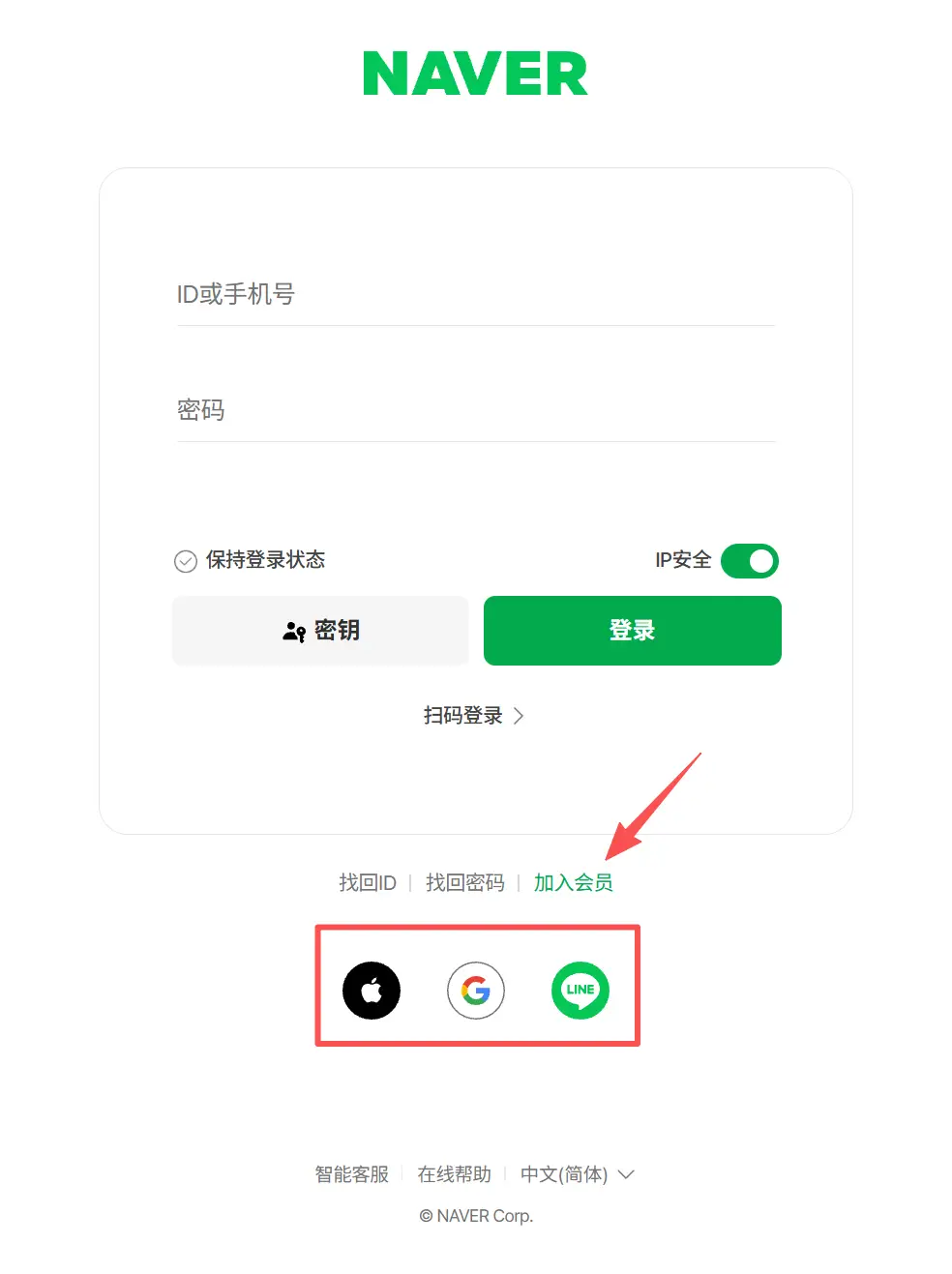
The image below shows the interface after logging in with a google account. The ID can be changed (as shown in the image below).
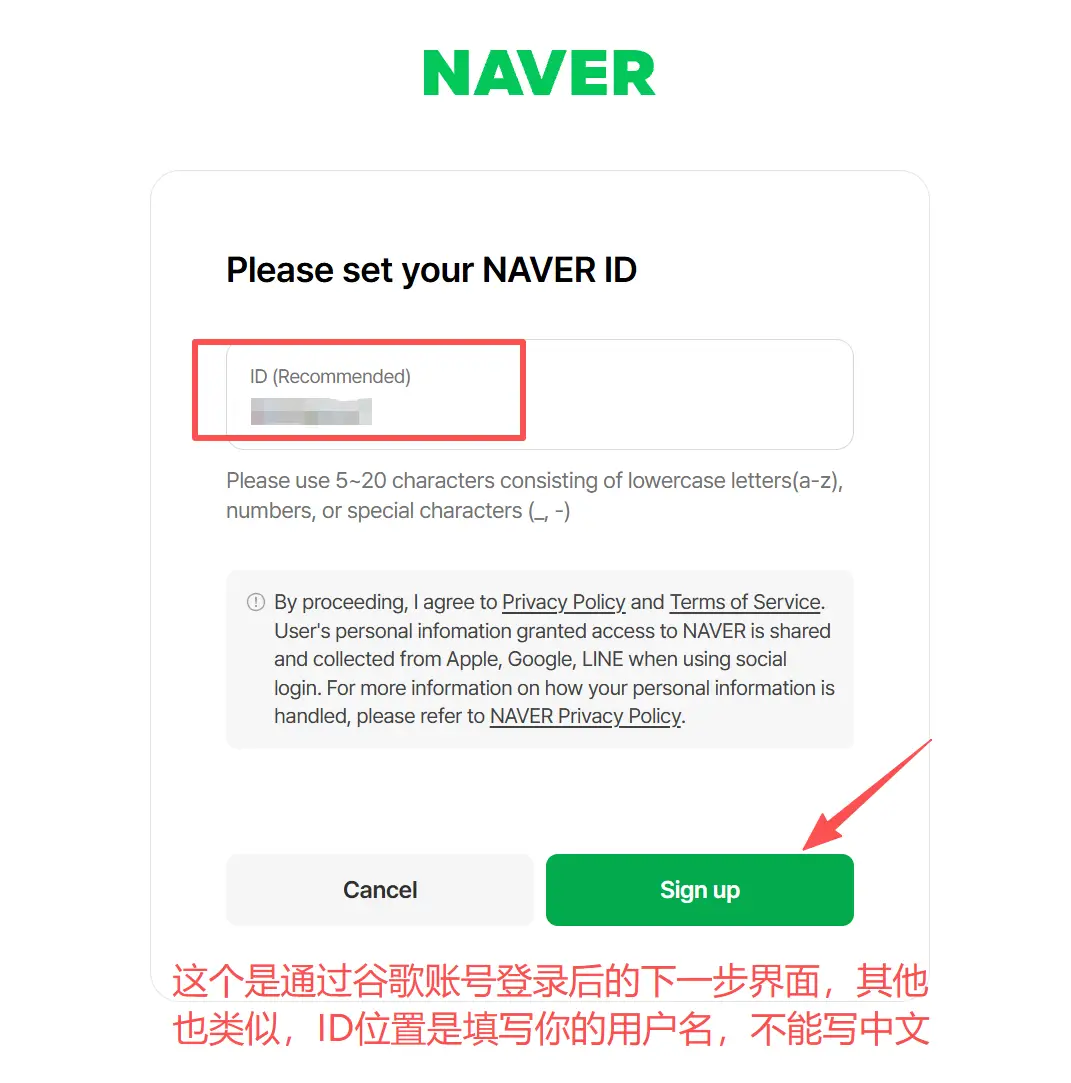
After clicking sign up, a success screen will pop up (as shown in the image below).
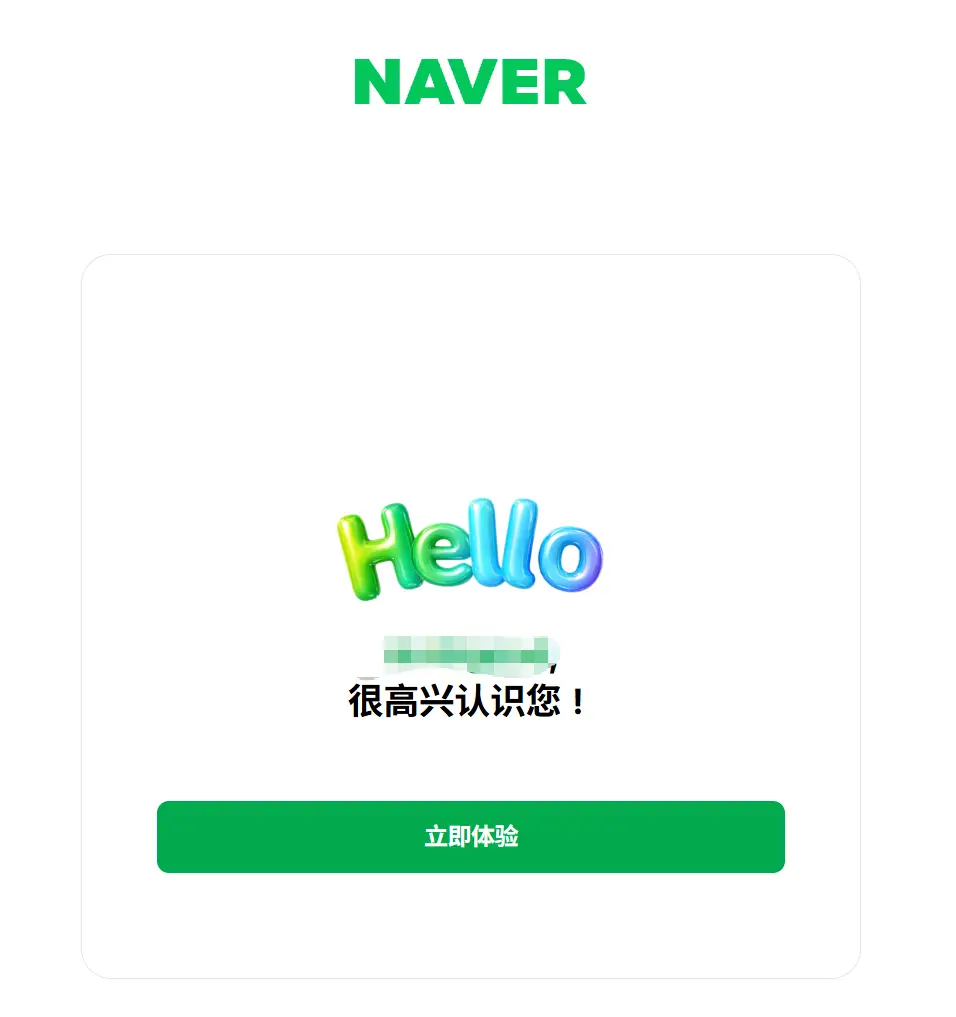
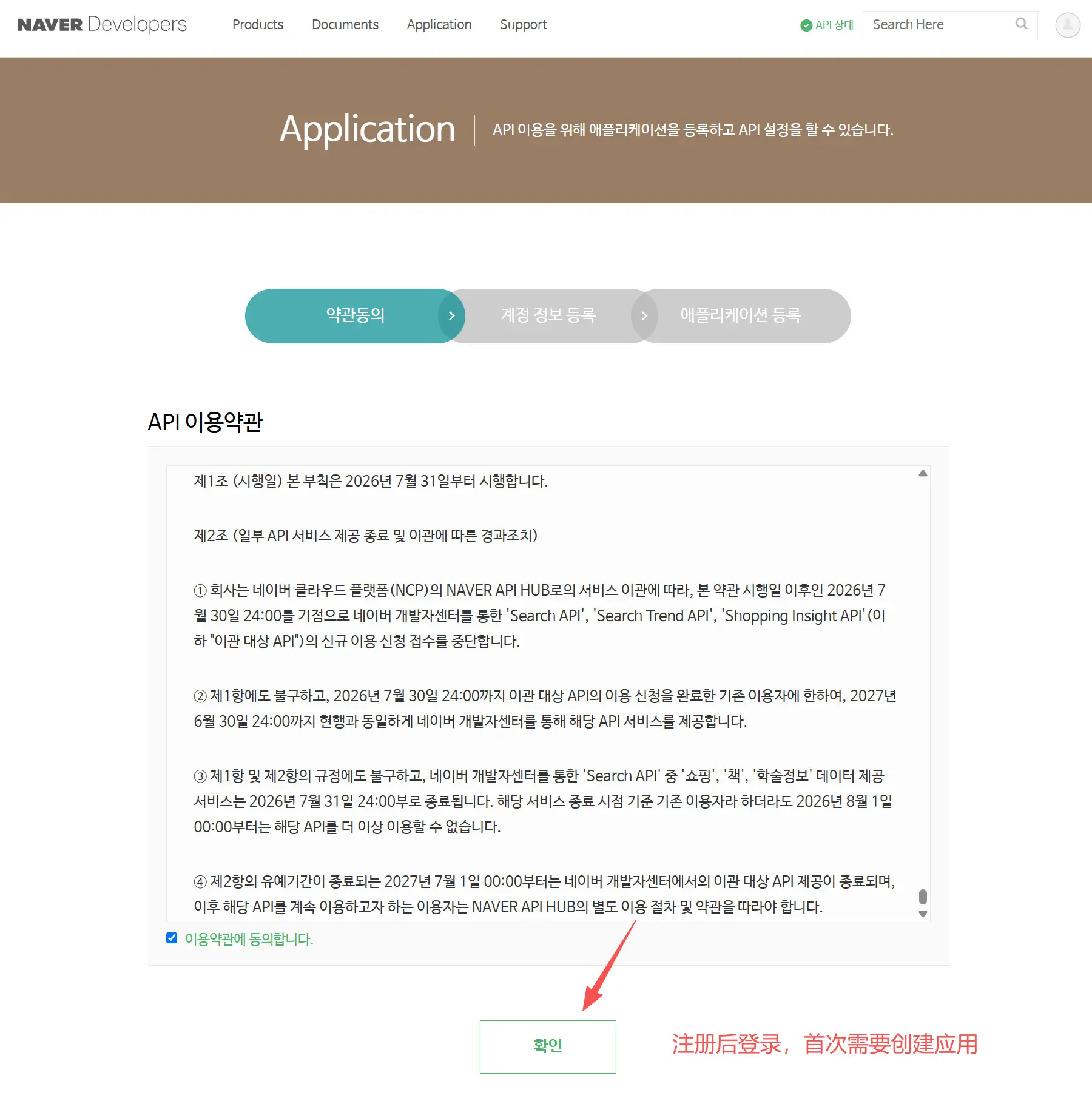
After registering and logging in, please click the confirm button to enter the create application interface.
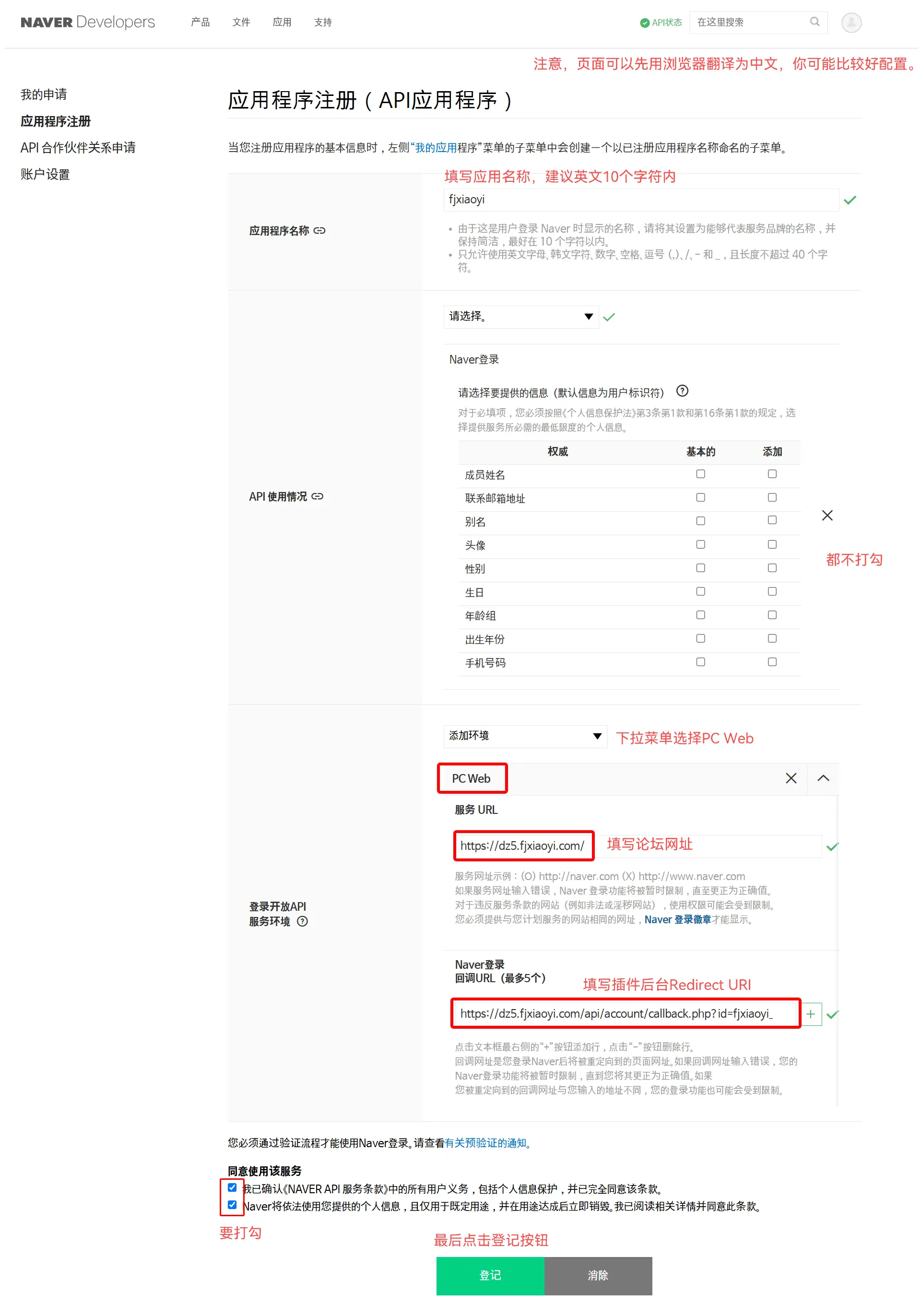
Select and fill in the requirements as shown in the screenshot below.
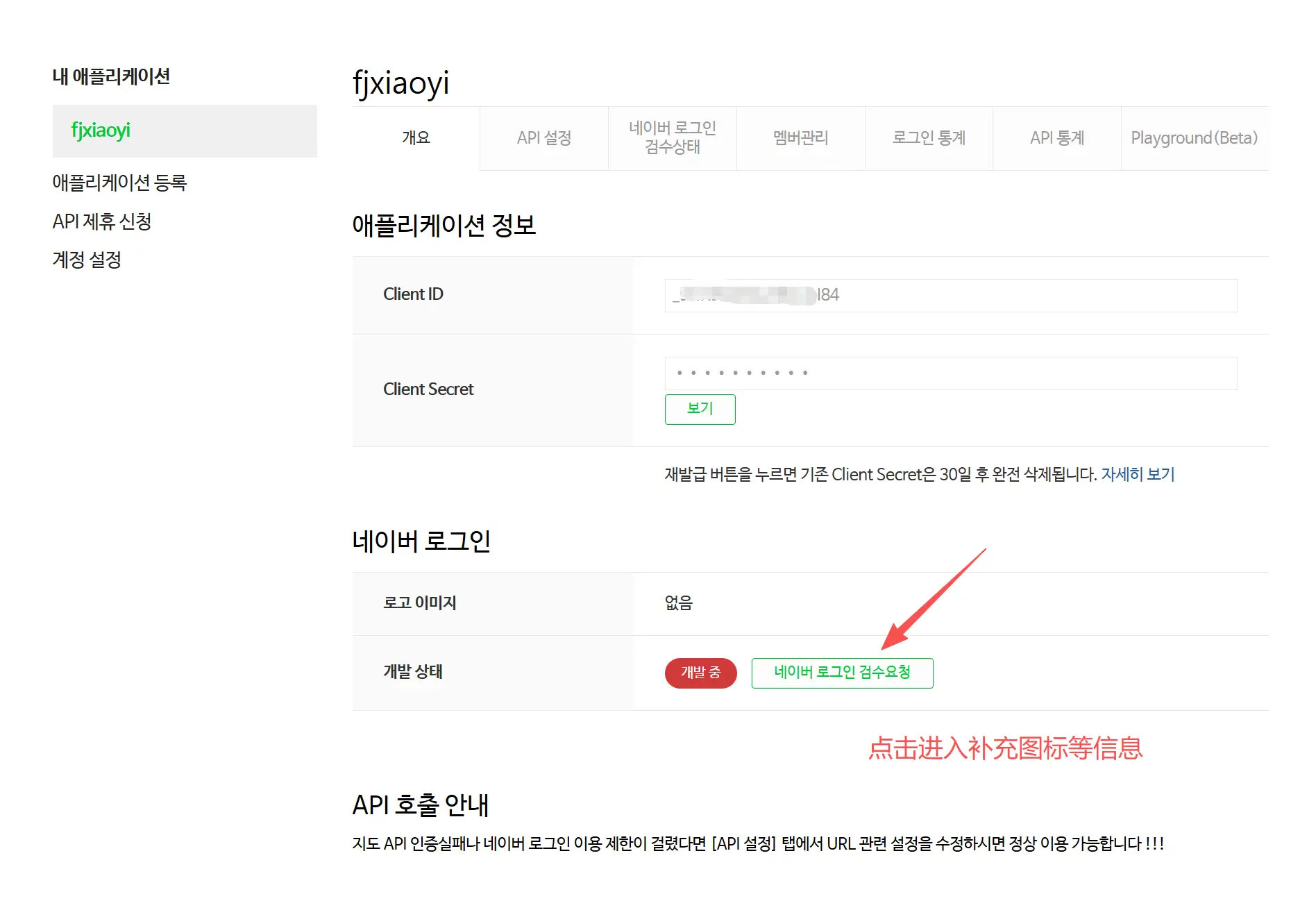
After filling in all the information, you will be taken to the following interface. Click the arrow to indicate the location to access the supplementary icon and other information. Before filling in the supplementary information, you can copy the client id and client secret to the plugin backend and then enable naver login in the dz backend.
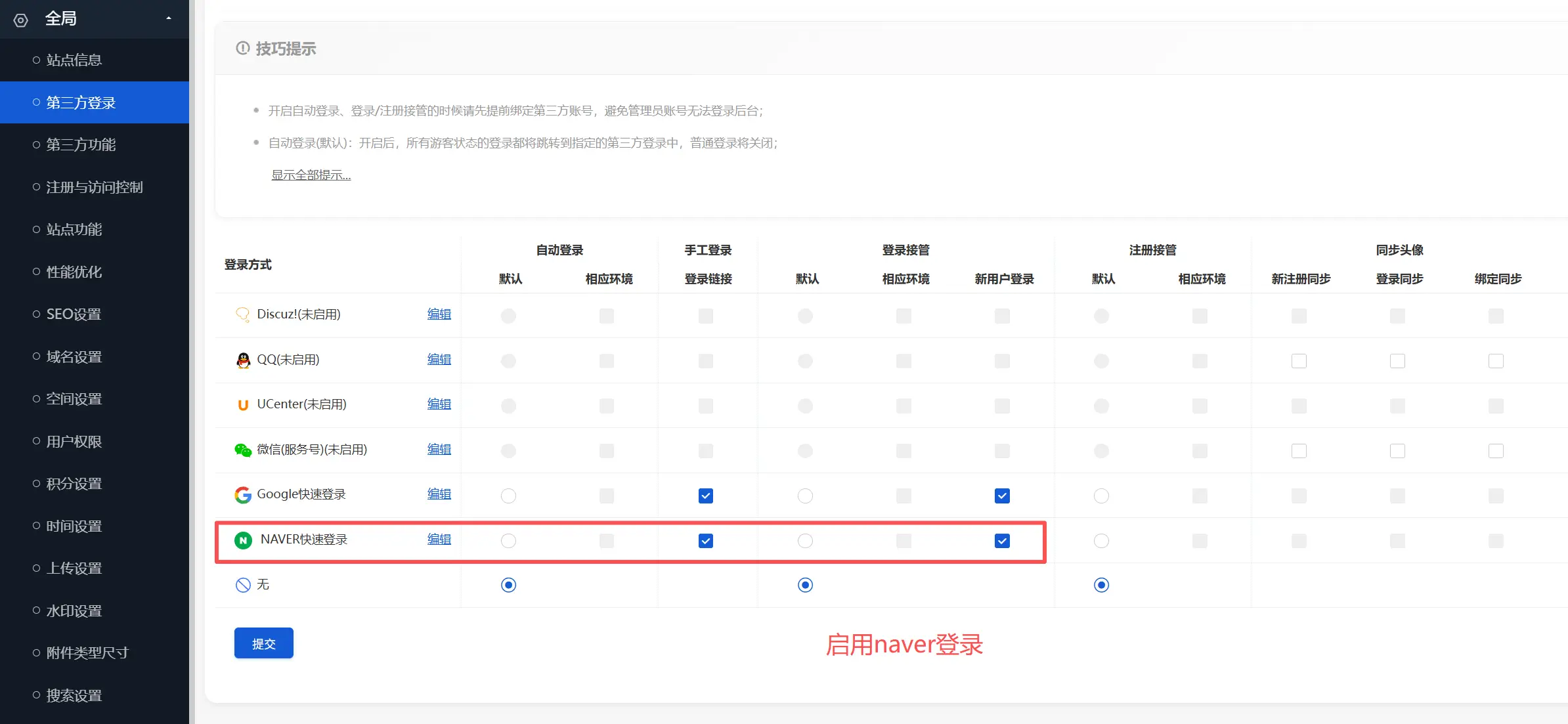
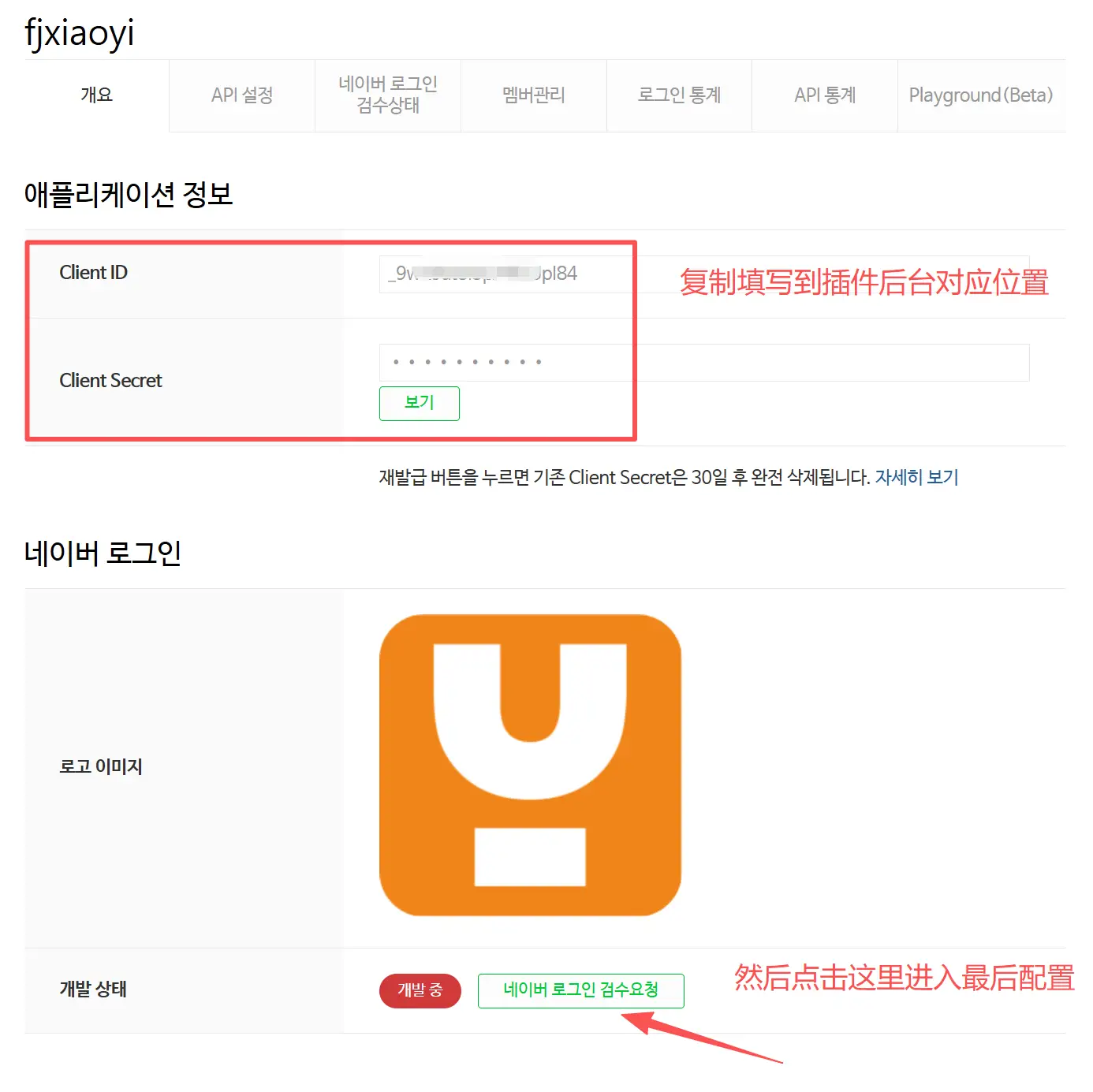
Click "Configure" to check the box as shown below, and upload two screenshots of the forum's front-end naver login (refer to the last two images on this page for screenshots).
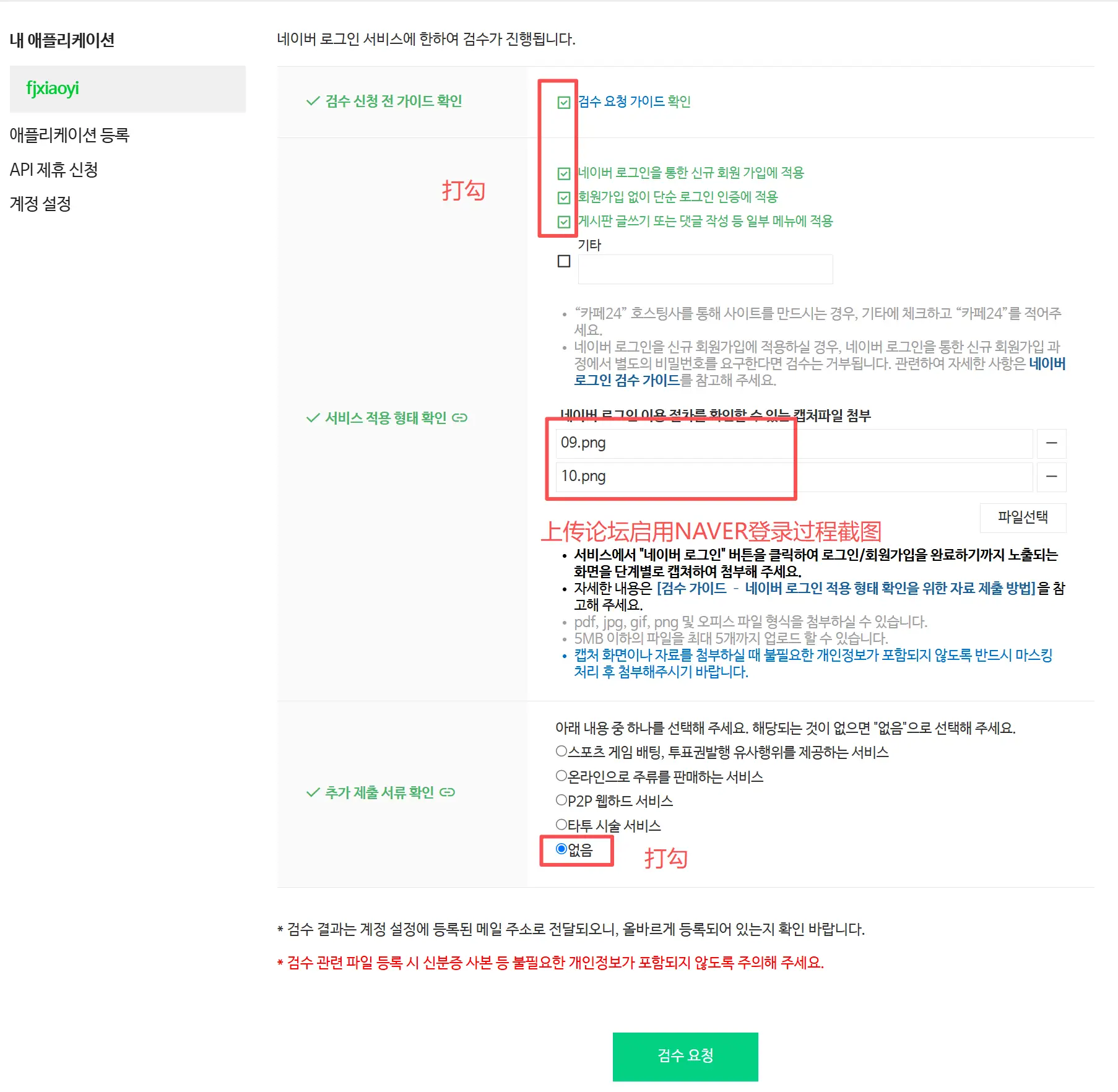
Screenshot uploaded to naver Reference 1
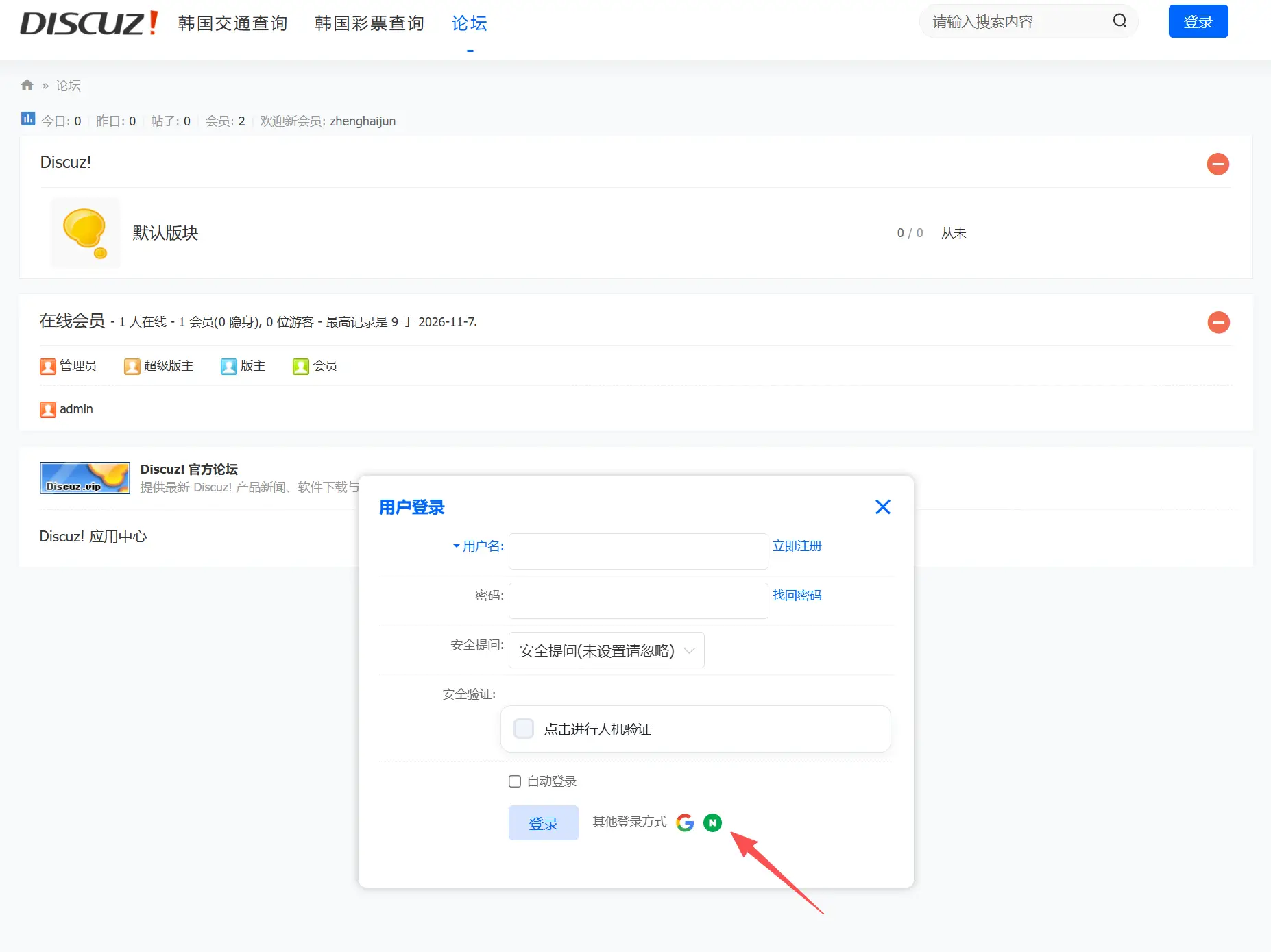
Screenshot uploaded to naver Reference 2